
Introducing AI Chatbot
The AI Chatbot is a smart assistant developed in-house by Worlder AI engineers to support the daily work of you and your customers. It is designed to be simple, intuitive, and reliable — helping you organise information, manage requests, and provide answers through natural, conversational input.
Available 24/7, the chatbot makes it easier to access and share the right information whenever you need it. It reduces manual effort, improves response time, and helps your team work more efficiently. The chatbot is also agile and adaptable, built to evolve with your future needs.
This User Manual will guide you through the various sections of the product. It will help you get started quickly and use the chatbot with confidence.
Quick Start
To begin, log in using your Wolonote ID.
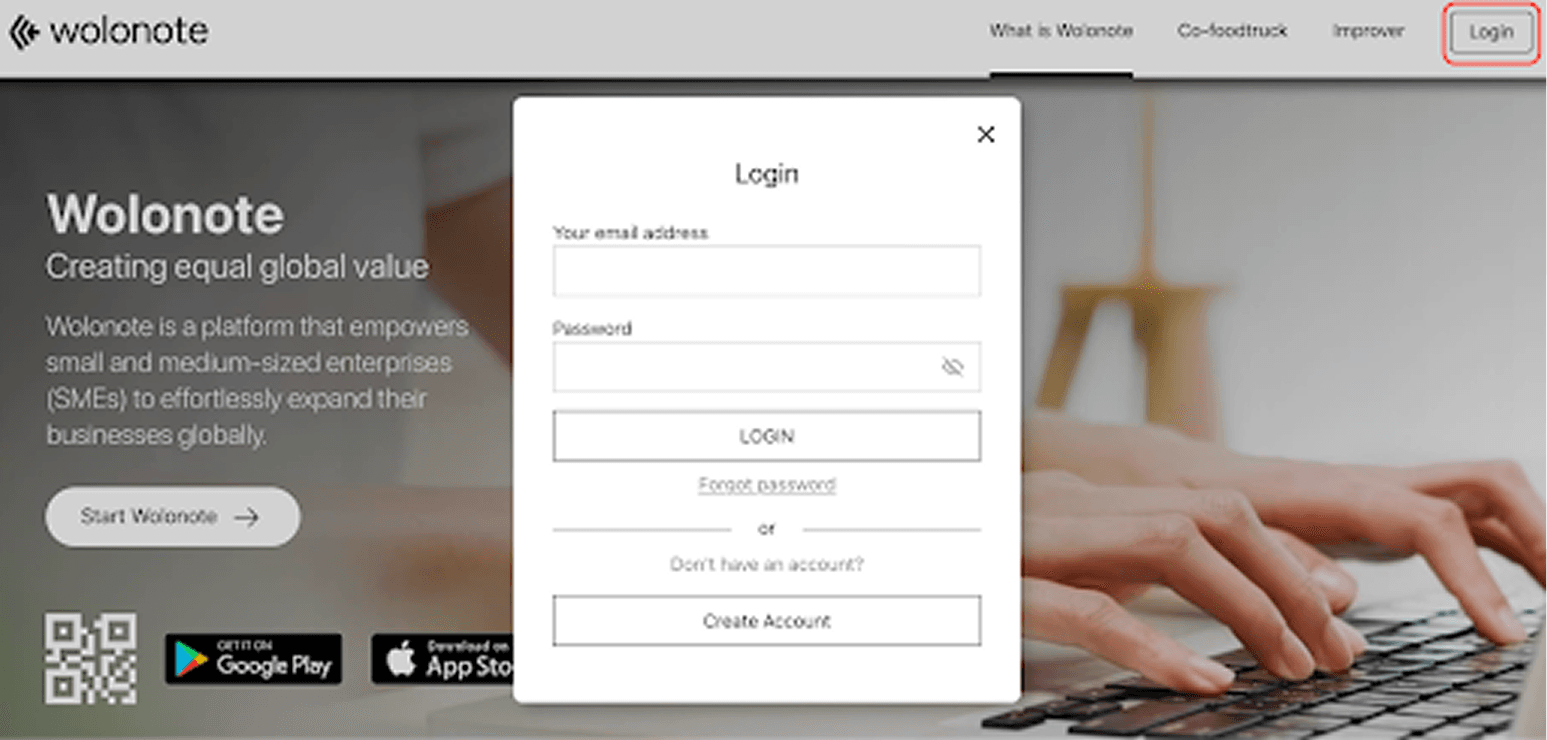
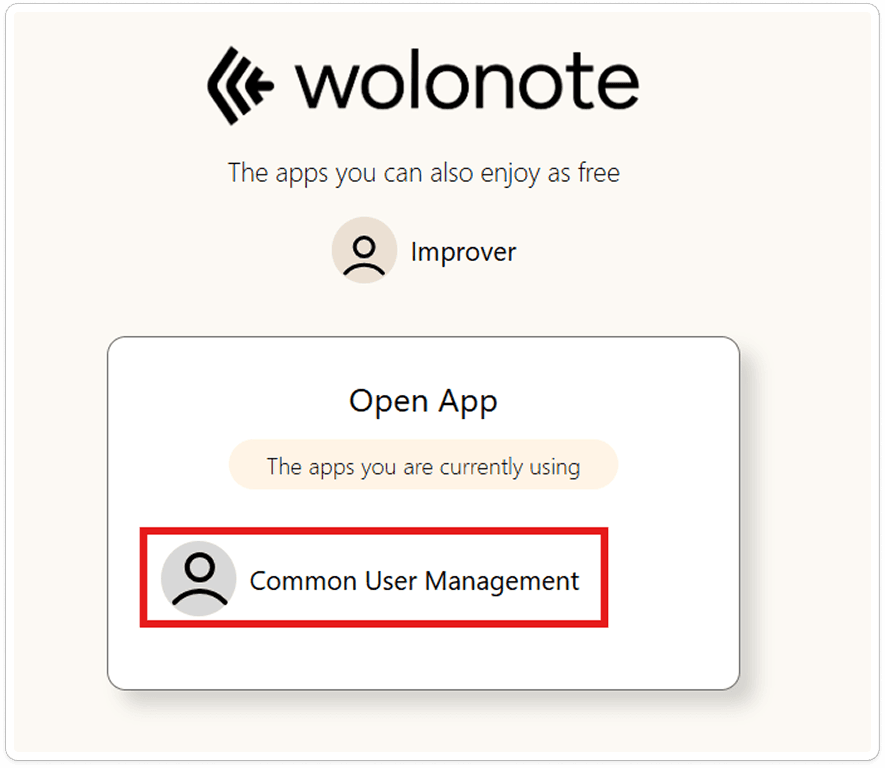
After logging in, users need to click the “Common User Management” button.
To access the Knowledge-bank App, go to https://knowledge-bank.wolonote.com and log in using your Wolonote ID.
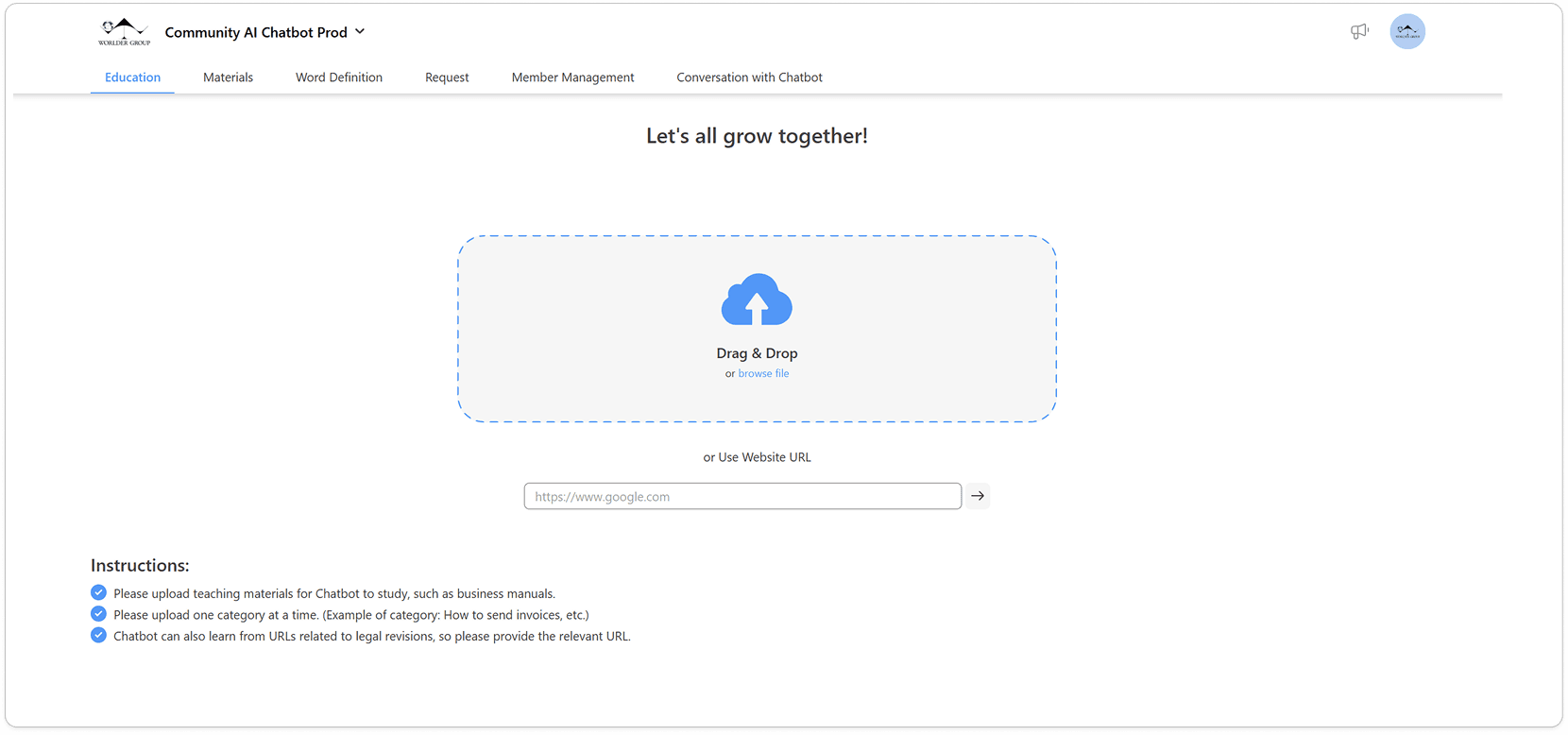
Uploading Files
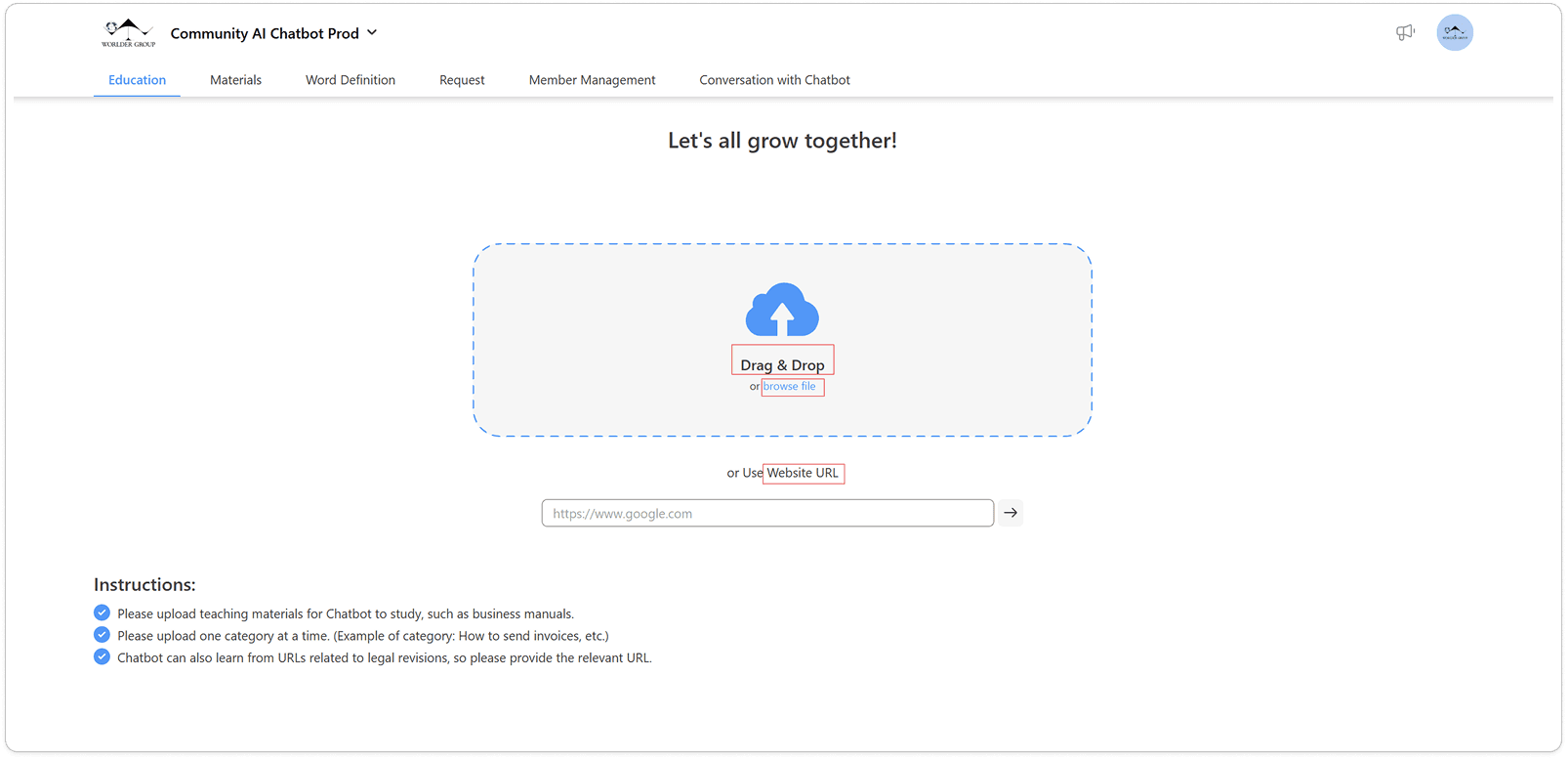
Users with “Manage Training Materials” access rights can add materials by selecting the Education tab and choosing one of the following options: drag and drop a file, browse to upload a file, or enter a website link.
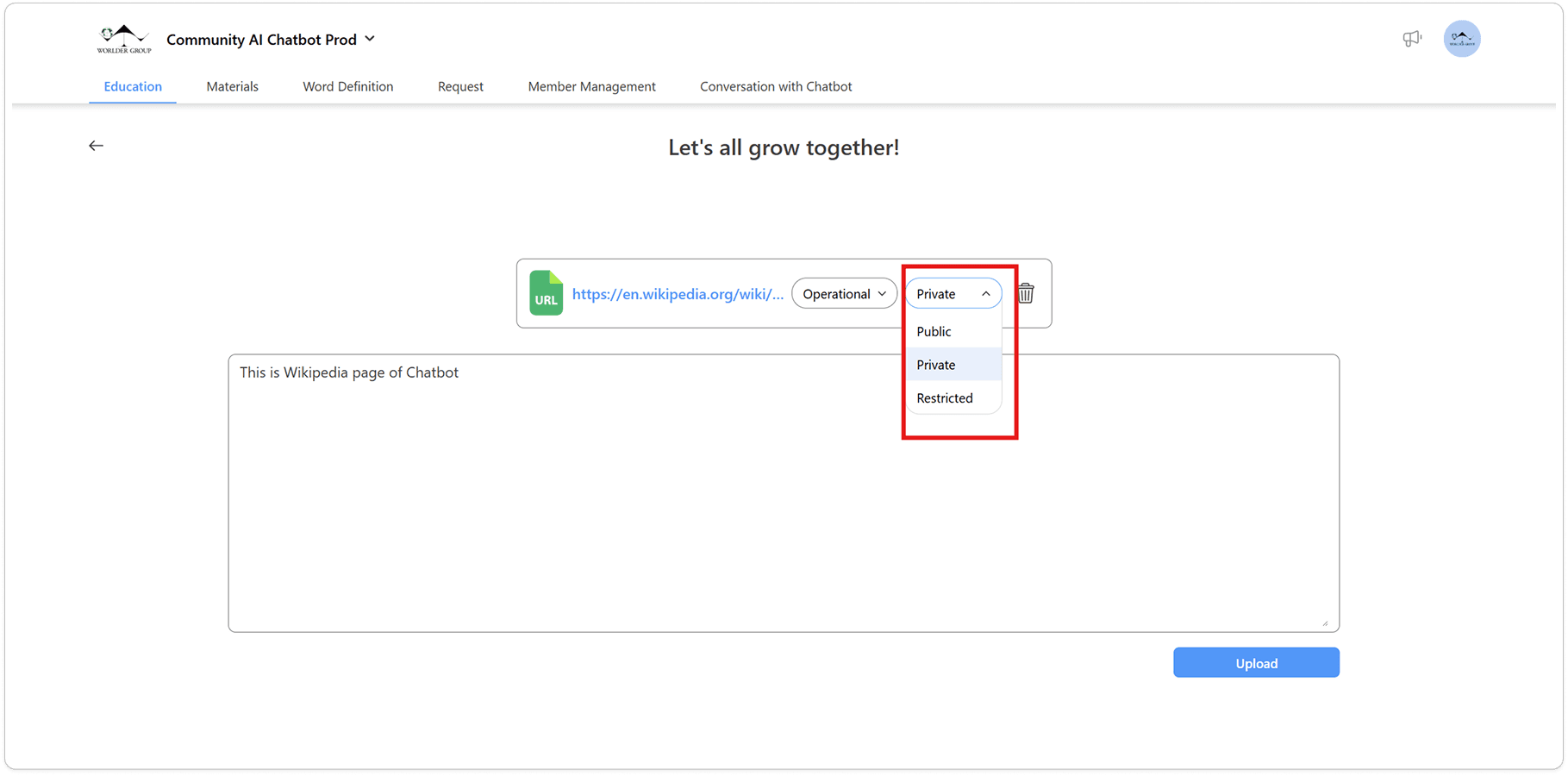
Access type can be set based on the requirement — choose from Private, Public, or Restricted.
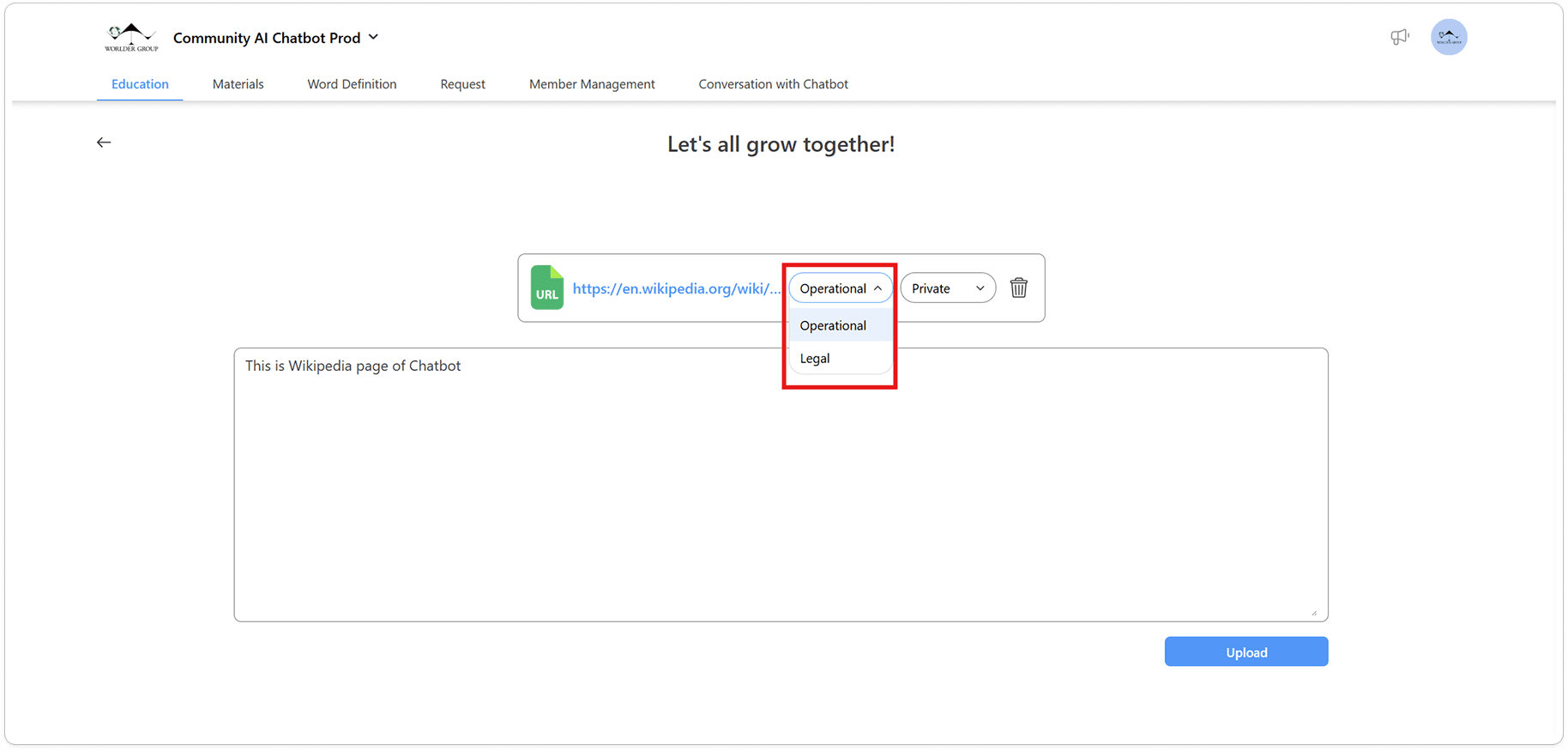
The document type can be set as either Operational or Legal, depending on the content.
Conversation With Chatbot
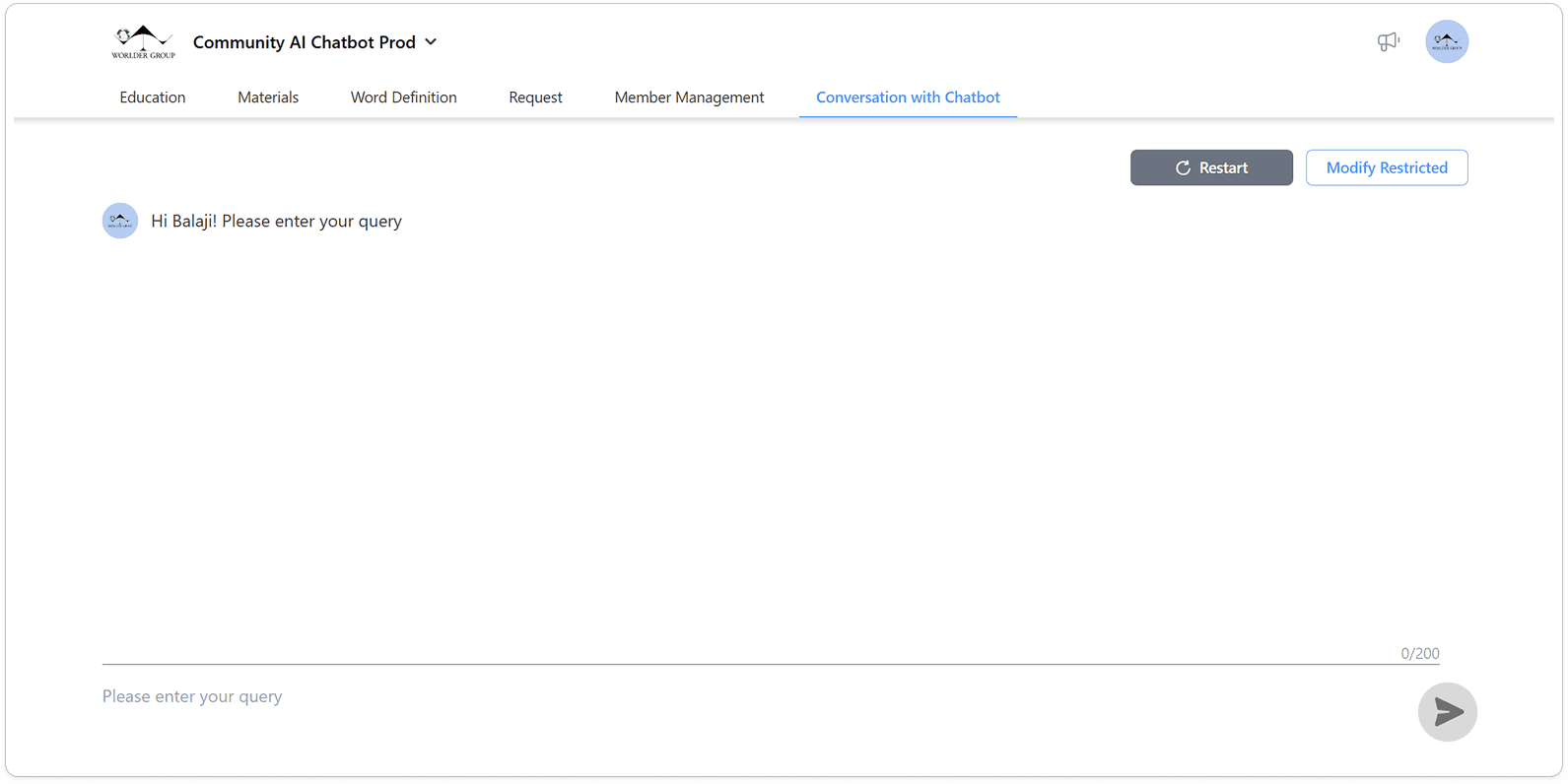
Users with “Engage in Conversation with Chatbot” access rights can interact with the AI chatbot to test its functionality.
Asking a Question as an Admin
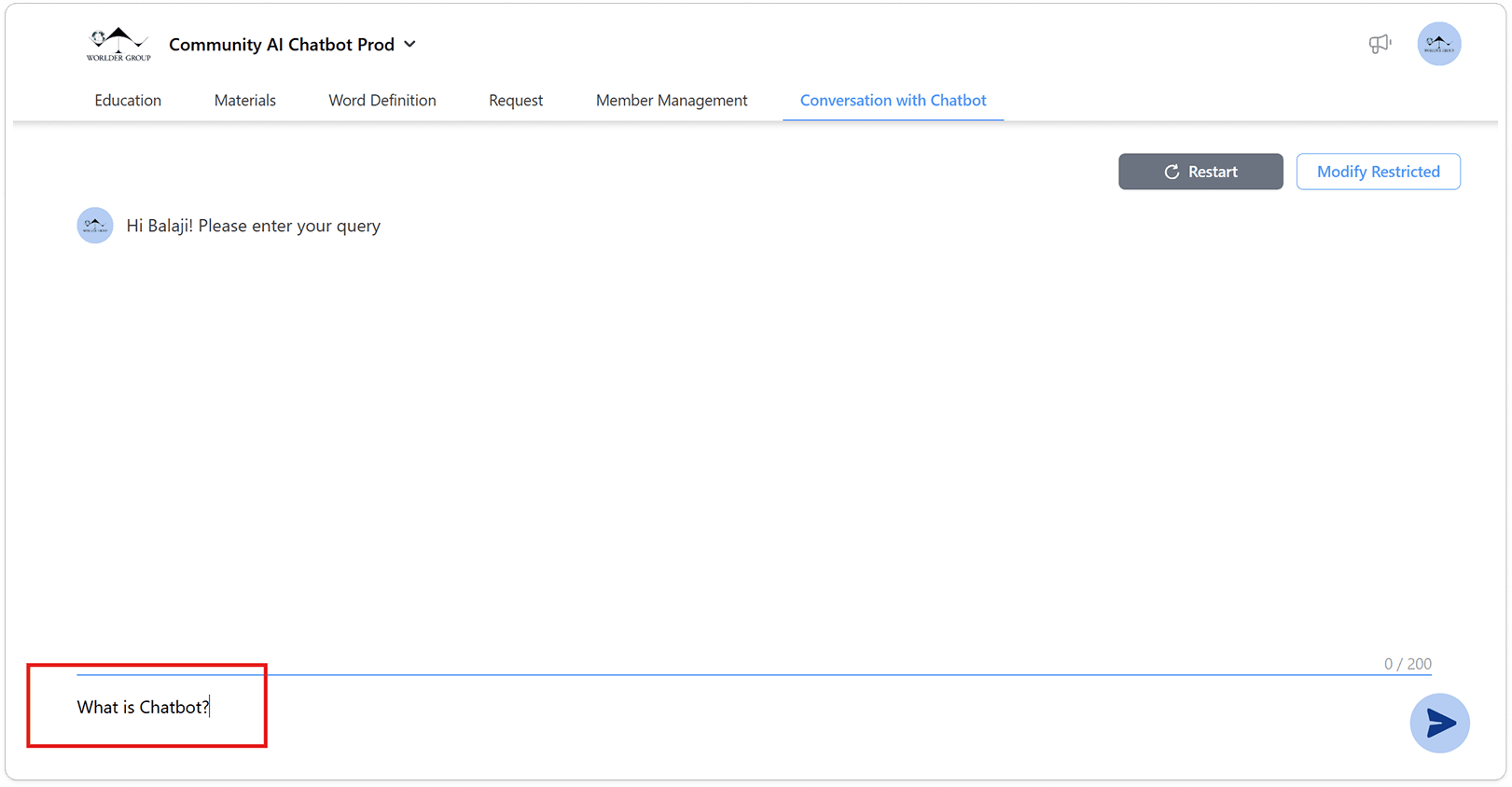
To ask a question, type your query in the "Please enter your query" field and click the "Send" button located at the bottom right.
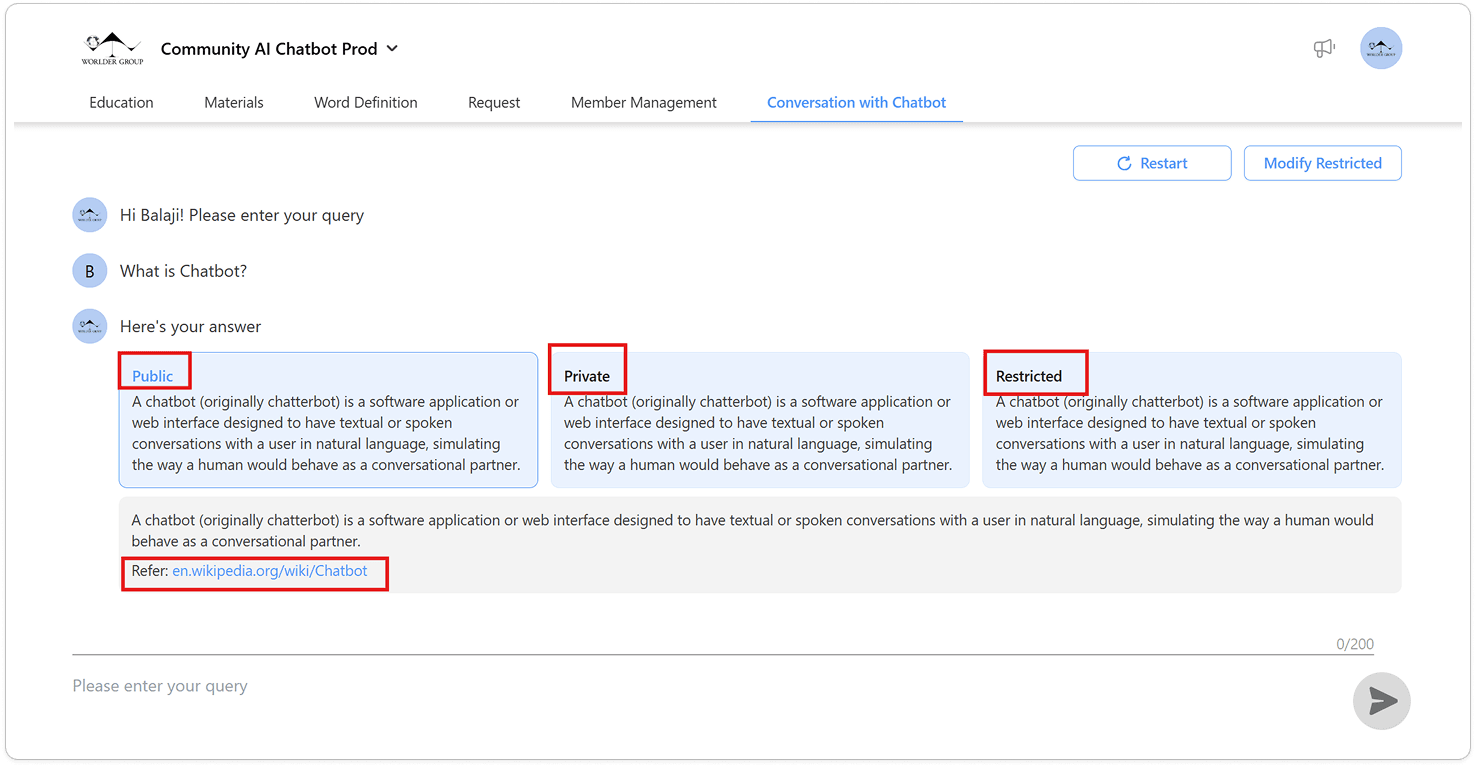
Replies will be provided in one of three formats: Public, Private or Restricted, along with information about the referred material. Select your preferred reply format.
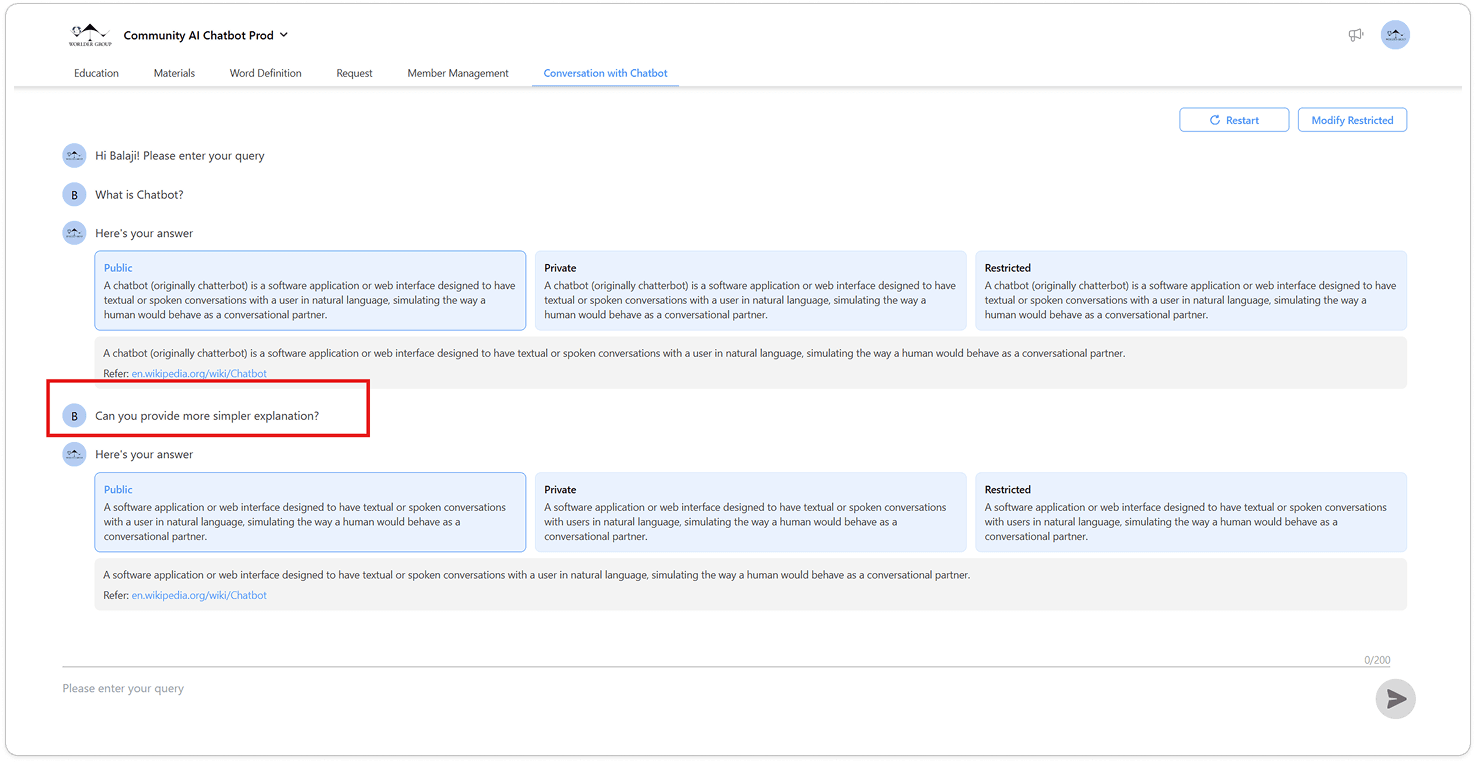
Ask additional questions to clarify any doubts and receive responses based on your queries.
Modify Restricted
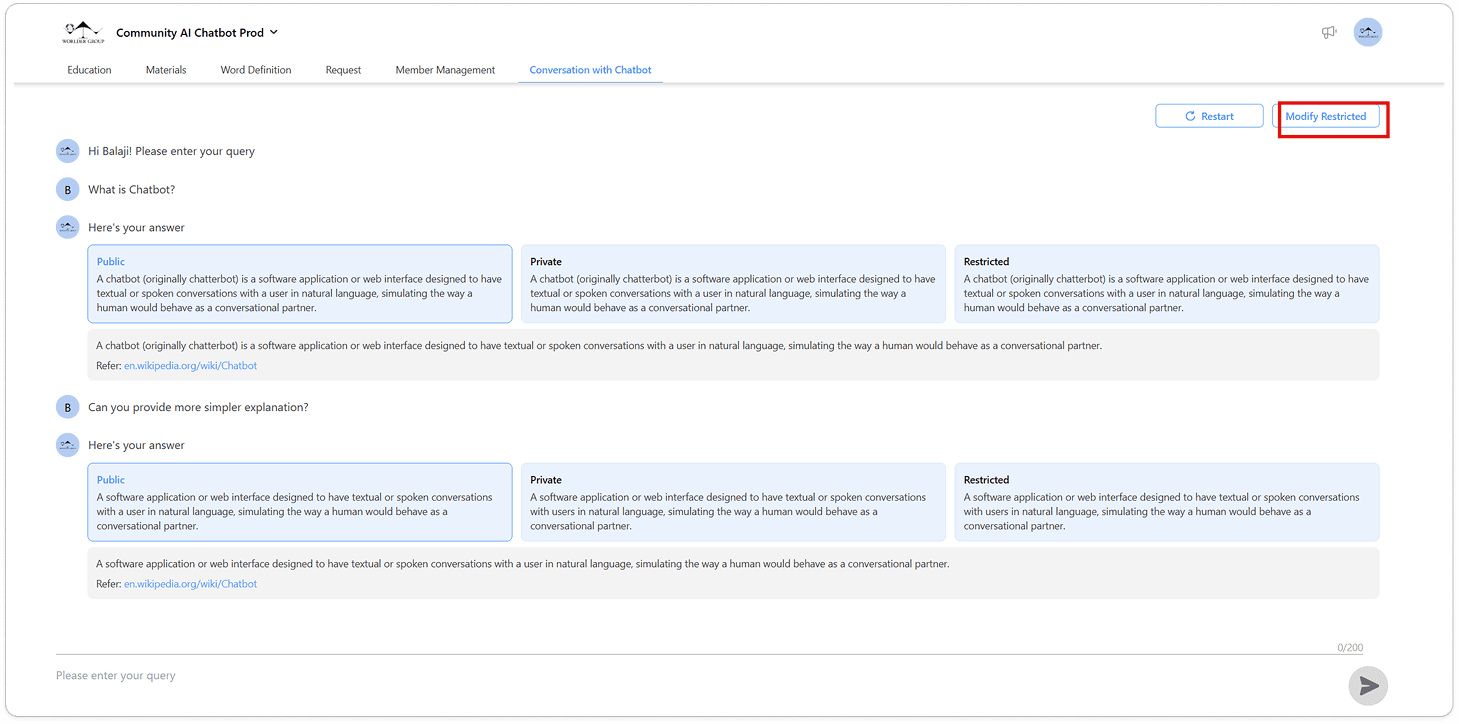
Click the “Modify Restricted” button to define the content you want to access, based on the relevant BU.
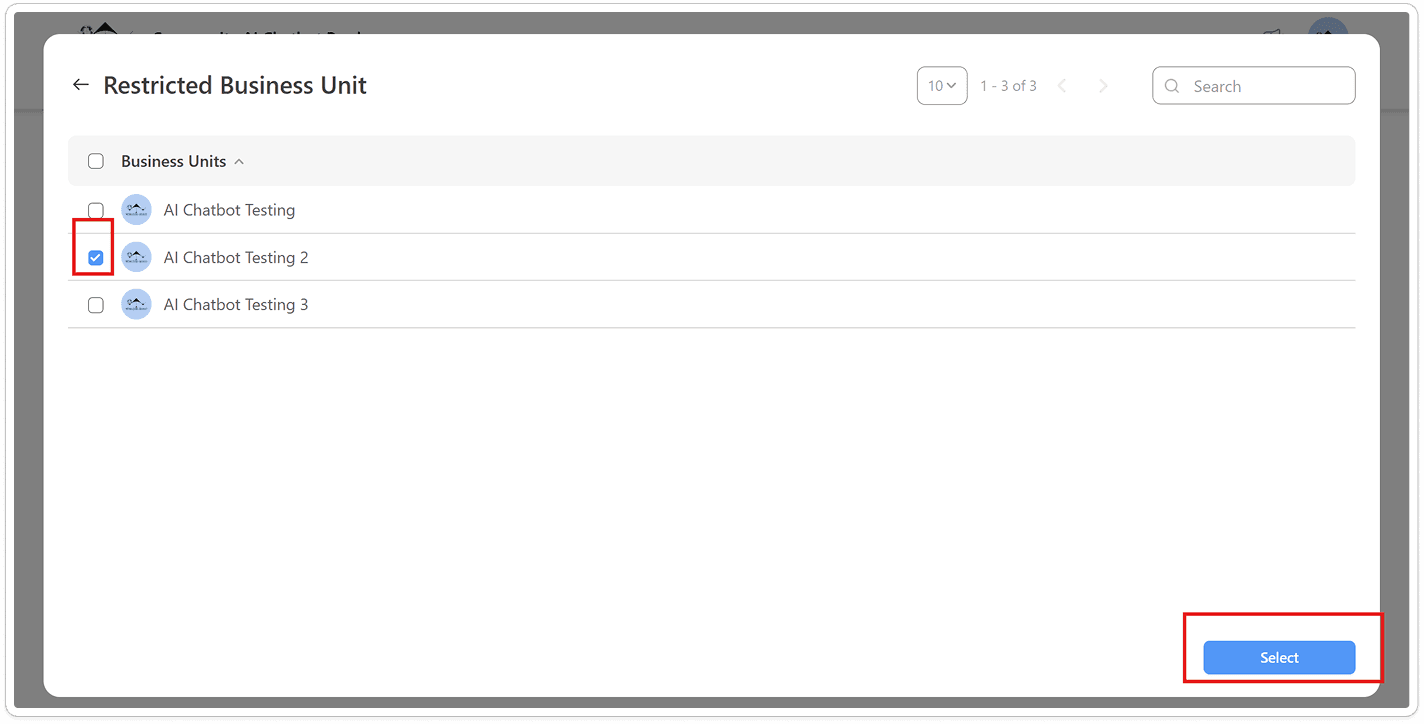
Select the specific BU to access only the restricted content associated with that BU.
Restart Chat
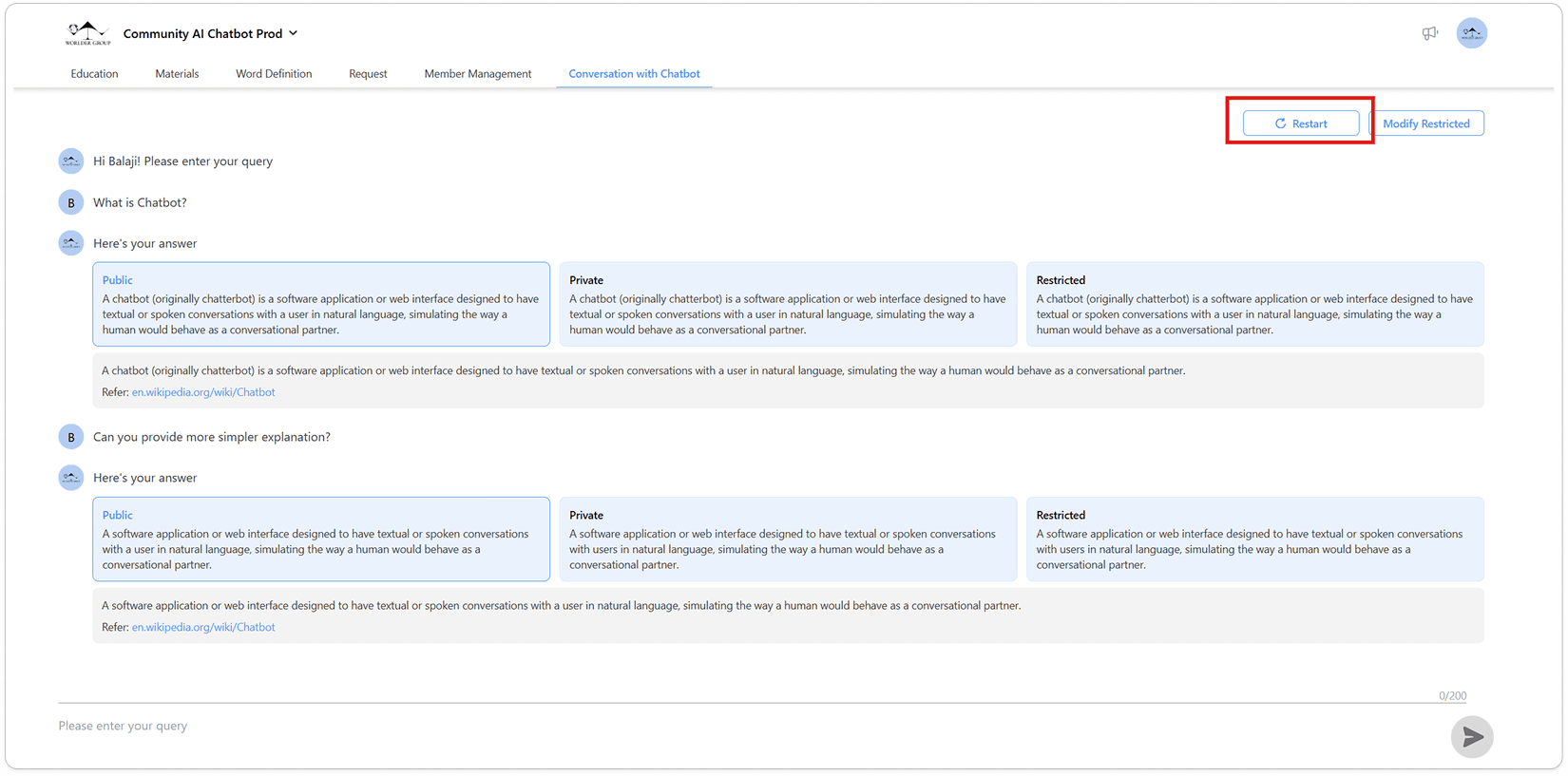
Click the “Restart” button to start a new chat or end the current conversation.
Logging into Chatbot
Go to https://chatbot.wolonote.com/?_sl=true to log in to the AI Chatbot.
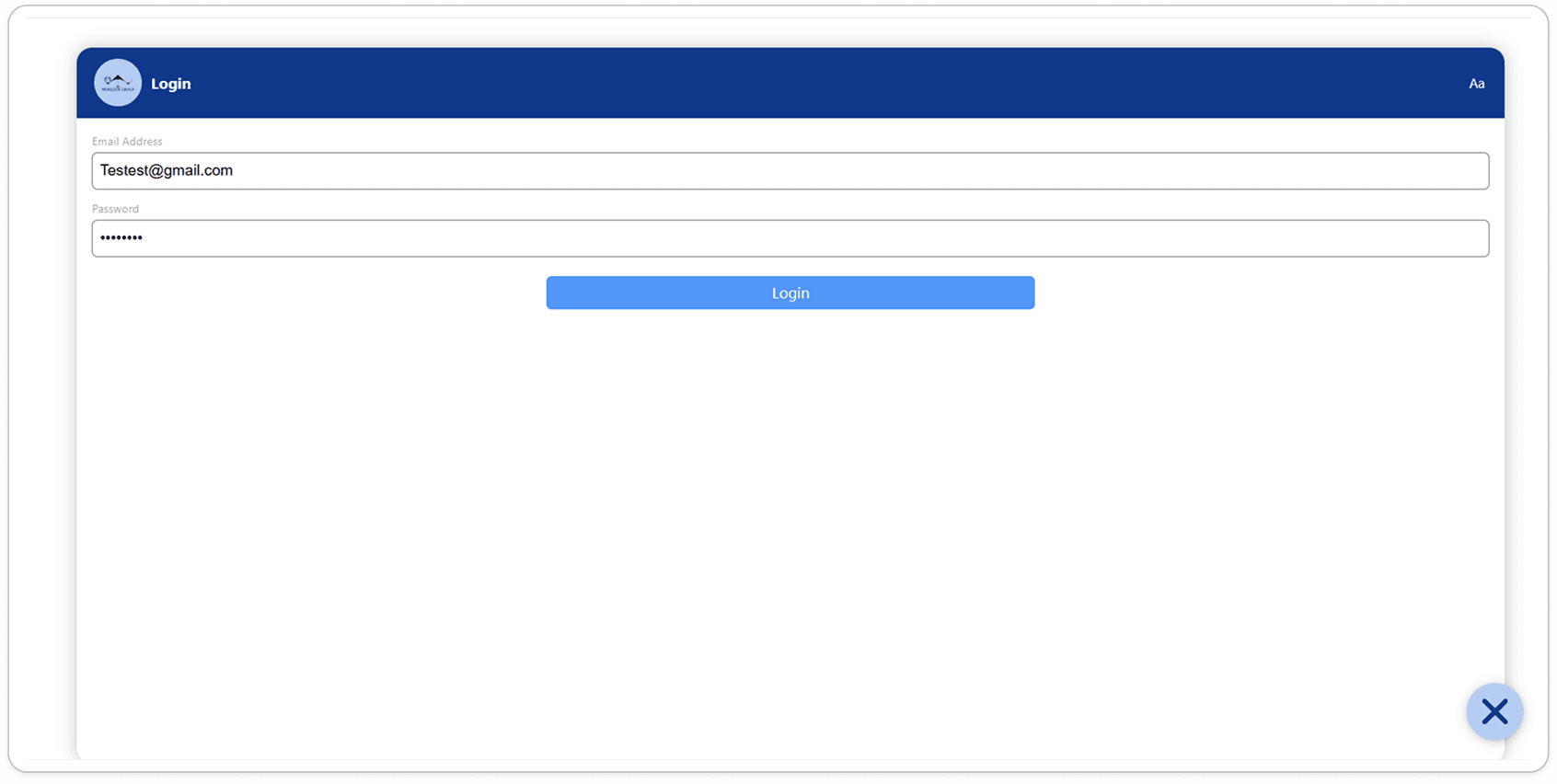
Enter your Wolonote email address and password, then click the Login button to access the chatbot.
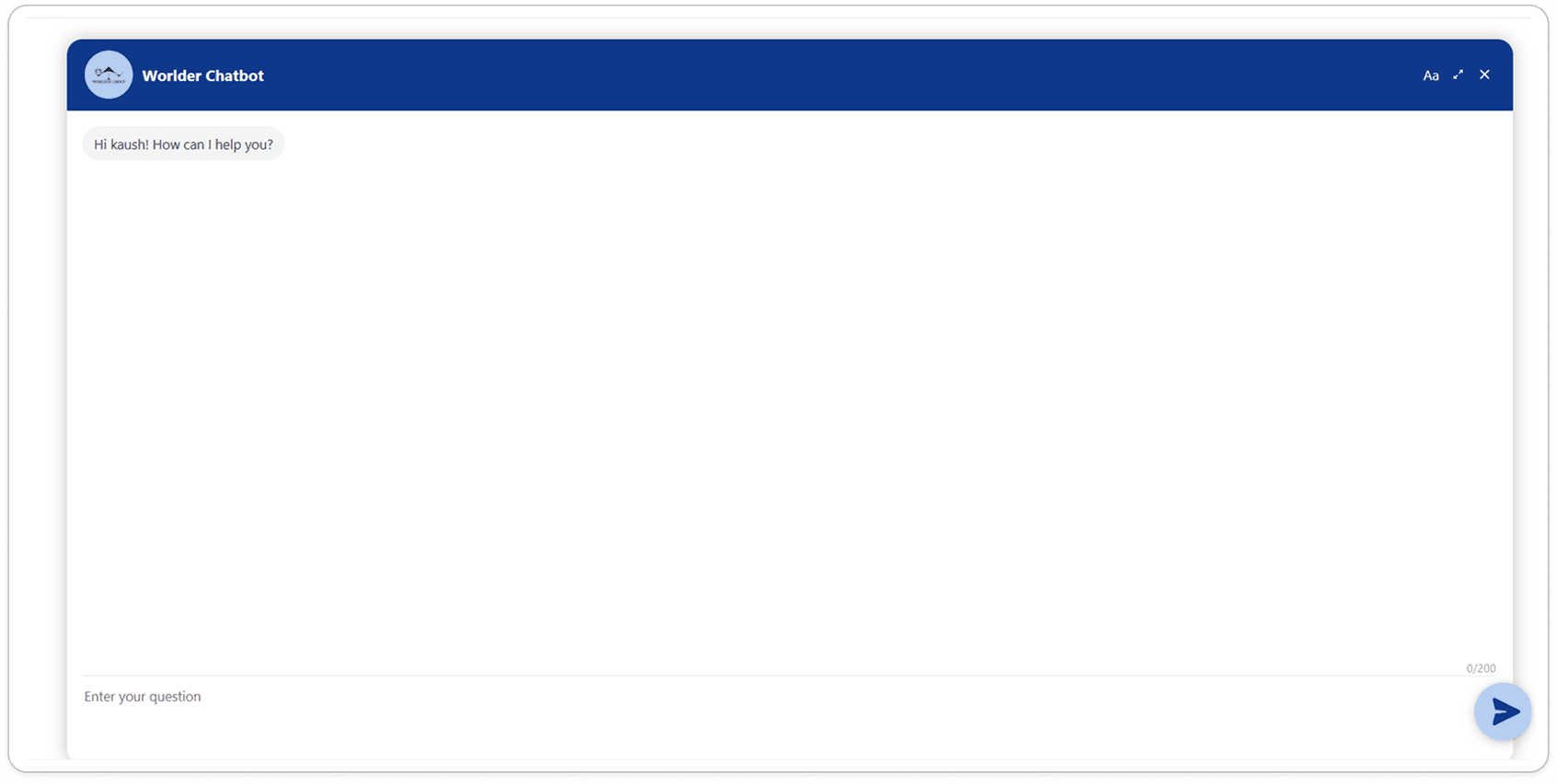
You can now begin chatting with the AI Chatbot.
Asking a Question as an End User
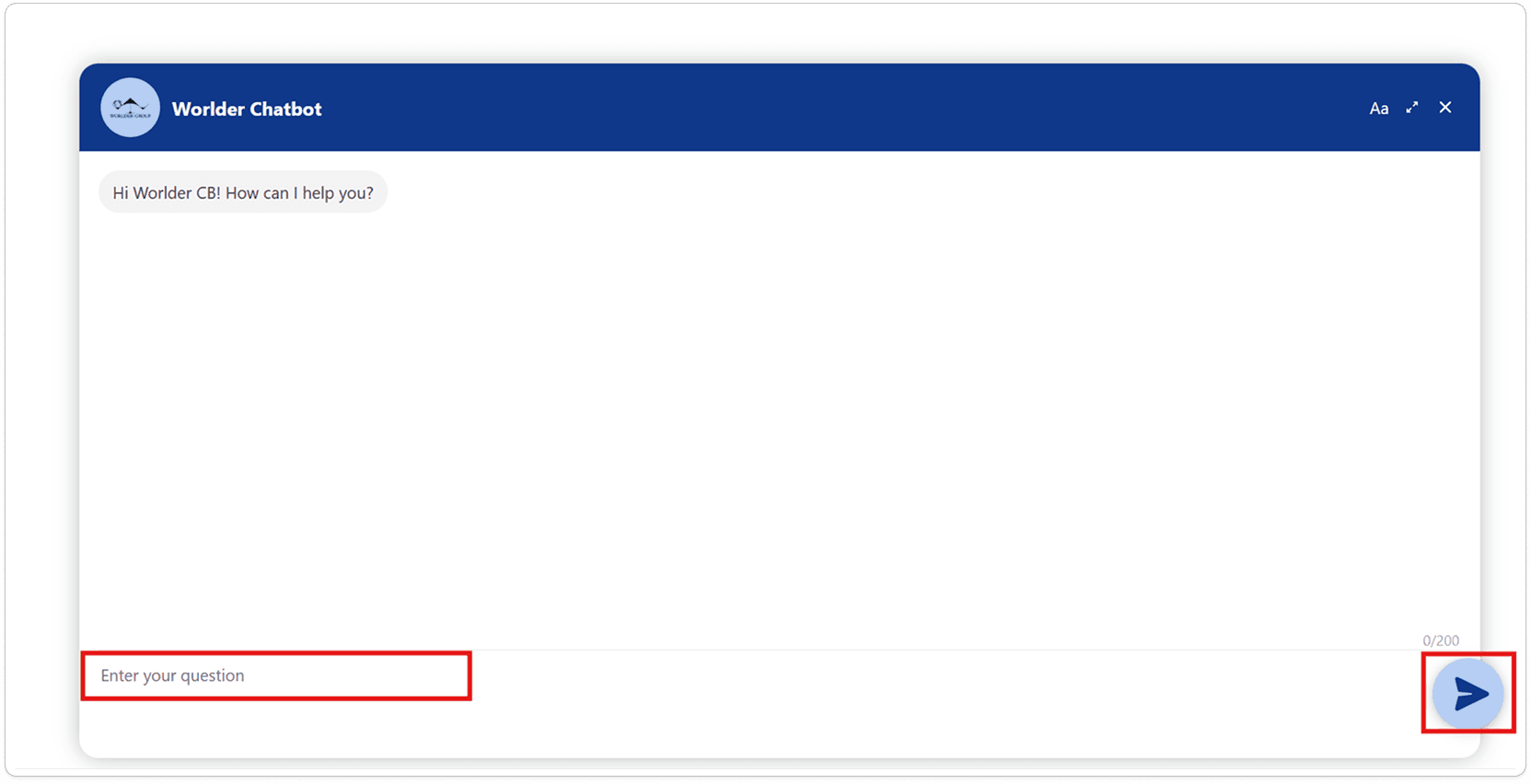
Ask a question by typing in the “Enter your question” field and clicking the send icon located at the bottom right.